
Free Top 5 AI Video Editing Tools (2026): Best Free AI Editors for Creators
now
119MB
18.8.0
100M+
Description
Table of Contents
Introduction
Video editing used to mean long nights hunched over a timeline, dragging clips, guessing at transitions, and manually typing out captions one word at a time. That has changed. AI video editing tools now handle a huge chunk of that grunt work automatically — cutting silences, generating subtitles, removing backgrounds, and even assembling rough drafts from raw footage.
That shift is a big reason so many creators are switching from traditional editors to AI-assisted ones. You do not need years of Premiere Pro experience to publish something that looks professional anymore. A student cutting a class project, a small business owner making a product reel, or a YouTuber pushing out three videos a week can all lean on the same AI shortcuts.
The appeal is simple: AI editing saves hours. Auto-captioning alone can turn a task that used to take 30 minutes into a 30-second job. Scene detection, auto-cut, and smart reframing handle the fiddly parts so you can focus on the story instead of the software.
The good news for anyone on a budget is that most of the leading AI video editors in 2026 offer genuinely usable free plans, with optional paid upgrades for higher resolution exports, more AI credits, or watermark-free downloads. In this guide, we compare the free Top 5 AI Video Editing Tools 2026 available right now, so you can pick the one that actually fits how you work.
What is AI Video Editing?
AI video editing refers to software that uses machine learning to automate or assist with tasks that once required manual, frame-by-frame work. Instead of clicking through every cut yourself, the software analyzes your footage and makes editing decisions — or at least strong suggestions — on your behalf.
Common capabilities you will run into across today’s free AI video editing tools include:
- Automatic editing — the software assembles a rough cut from raw clips based on pacing and content.
- AI scene detection — footage is automatically split at natural cut points.
- Auto subtitles — spoken audio is transcribed and turned into on-screen captions.
- AI voice generation — text-to-speech voiceovers, sometimes with cloned or stylized voices.
- AI transitions — smart transitions applied automatically between clips.
- Background removal — subjects are separated from their background without a green screen.
- AI object removal — unwanted items or people are erased from a shot.
- AI enhancement — upscaling, stabilization, noise reduction, and color correction handled automatically.
Why Use AI Video Editing Tools?
AI-powered editors are not just a novelty — they solve real production problems for anyone who publishes video regularly. Here is why creators are adopting them:
- Saves time by automating repetitive tasks like cutting silences and captioning.
- Makes editing genuinely easier for people with no formal training.
- Produces professional-looking results without a steep learning curve.
- Removes the need for prior editing experience to get a usable first cut.
- Generates accurate auto captions, which boosts accessibility and watch time.
- Speeds up rendering and exporting compared to manual workflows.
- Improves engagement through cleaner pacing, captions, and effects.
- Supports content automation for creators publishing multiple videos a week.
How We Selected the Top 5 AI Video Editing Tools
Dozens of tools now claim to offer AI video editing. To narrow the list down to five worth your time, we weighed each platform against the following criteria:
- Free plan features — how much real editing power is available without paying?
- Ease of use — how quickly a beginner can produce a finished video.
- AI capabilities — the depth and usefulness of automated tools, not just marketing claims.
- Export quality — maximum resolution and file quality on the free tier.
- Supported platforms — availability across web, desktop, Android, and iOS.
- Watermark policy — whether free exports carry a visible watermark.
- Templates — the size and quality of the built-in template library.
- User reviews — real feedback from creators using the tool day to day.
- Performance — reliability and export speed under normal use.
- Regular updates — how actively the platform is maintained and improved.
Because free-plan limits and pricing change often, treat the details below as a snapshot for 2026, and always check each tool’s official pricing page before you commit to a workflow.
Comparison Table
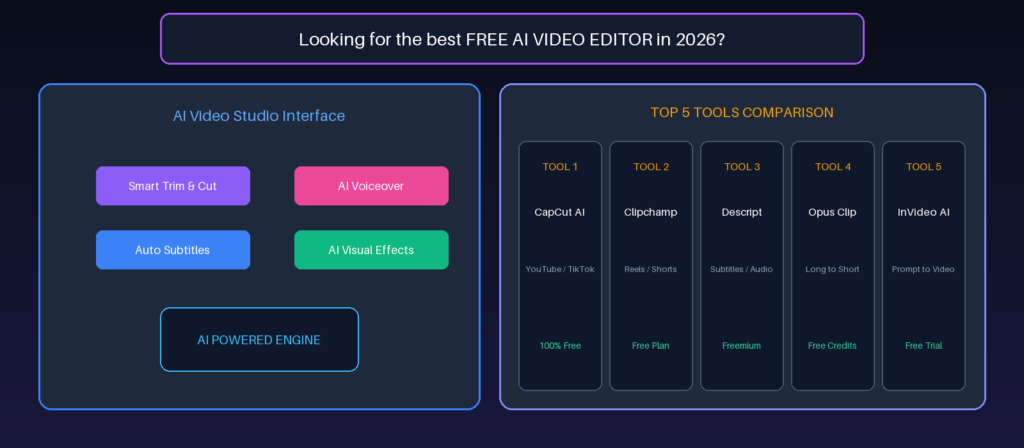
| Tool | Best For | Free Plan | AI Features | Platforms | Watermark | Rating |
| CapCut | Short-form (TikTok, Reels) | Generous, no watermark | Auto-captions, AI voiceover, background removal | Web, Desktop, Android, iOS | No (standard exports) | 4.7/5 |
| Canva | Design-led social video | Solid, credit-limited AI | Magic Media, Magic Video, AI Highlights | Web, Desktop, Android, iOS | No (free assets) | 4.5/5 |
| Clipchamp | Beginners, Microsoft 365 users | 1080p, no watermark | Auto captions, text-to-speech, silence removal | Web, Windows, iOS | No | 4.4/5 |
| InVideo AI | Script-to-video generation | Watermarked, limited minutes | Text-to-video, AI avatars, auto workflows | Web | Yes (free tier) | 4.2/5 |
| Descript | Podcast & talking-head editing | 1 hour/month, watermarked | Transcript-based editing, Studio Sound, filler-word removal | Web, Desktop | Yes (free tier) | 4.4/5 |
Top 5 Free AI Video Editing Tools (2026)
Below is a closer look at each tool, including free plan limits, standout AI features, and who each one suits best. Feature availability and free-tier limits shift often, so double-check each platform’s current pricing page before publishing a comparison based on this article.
1. CapCut
Overview: CapCut, developed by ByteDance (the company behind TikTok), is widely considered one of the most complete free video editors for short-form content in 2026. It runs on web, desktop, and mobile, and its free tier includes a genuinely full editing toolkit rather than a stripped-down trial.
Key AI Features:
- Auto-captions with support for multiple languages, capped by monthly minutes on the free tier.
- AI voiceover using text-to-speech.
- Background removal for portrait and product shots, limited by monthly credits.
- Auto-cut and scene detection for quick rough assembly.
- Advanced AI tools such as camera tracking, vocal isolation, and AI upscaling are reserved for the paid Pro tier.
Free Plan Features:
- Multi-track timeline editing, keyframe animation, and chroma key.
- Trim, split, merge, and basic stabilization tools.
- Free music, sound effects, filters, and transitions.
- Exports up to 1080p with no watermark on standard exports.
- AI features are available but capped by monthly usage limits.
Supported Platforms: Web, Windows, macOS, Android, and iOS.
Pros:
- One of the most generous free tiers among short-form editors.
- Intuitive interface suited to beginners and fast turnarounds.
- Huge built-in library of trending templates, sounds, and effects.
Cons:
- Heavy AI users (daily auto-captioning or background removal) can burn through free credits within a week.
- Advanced AI tools like voice cloning and 4K export require the paid Pro plan.
- Regional pricing and plan names can be confusing to compare.
Best For: TikTok, Instagram Reels, and YouTube Shorts creators who publish frequently.
Pricing: Free plan available; Pro plans add 4K export and expanded AI credits for a monthly or annual fee (regional pricing varies).
Official Website: capcut.com
User Rating: 4.7 out of 5 based on aggregated user reviews.
Why We Recommend It: For creators making short, high-volume content, CapCut’s free plan covers the vast majority of day-to-day editing needs without forcing an upgrade.
2. Canva
Overview: Canva has grown from a graphic design tool into a genuine video editor, built around templates and its Magic Studio suite of AI features. It is a strong pick for creators who already build graphics, thumbnails, and presentations in Canva and want their video workflow in the same place.
Key AI Features:
- Magic Media / Magic Video for short AI-generated clips and auto-assembled highlight reels.
- AI object removal and background replacement.
- AI Highlights, which identifies strong moments in your footage for repurposing.
- Magic Write for AI-assisted scripts and captions.
Free Plan Features:
- Timeline-based editing with transitions, text overlays, and trimming.
- Access to a portion of Canva’s video template library.
- A limited monthly allotment of AI credits shared across Magic Studio tools.
- 1080p export on the free tier.
Supported Platforms: Web, Windows, macOS, Android, and iOS.
Pros:
- Deep integration with Canva’s design tools, templates, and brand assets.
- Real-time collaboration for teams working on the same project.
- AI credits are shared but genuinely useful for quick social clips.
Cons:
- The editing model is slide-based rather than a traditional multi-layer timeline, which limits complex edits.
- AI credits deplete quickly for creators generating video regularly.
- No built-in chroma key on the base editor.
Best For: Marketers, small businesses, and creators who want branded, template-driven video without a steep learning curve.
Pricing: Free plan available; Canva Pro is a monthly or annual subscription that adds expanded AI credits, premium stock, and higher-resolution export.
Official Website: canva.com
User Rating: 4.5 out of 5 based on aggregated user reviews.
Why We Recommend It: If you already design social graphics in Canva, its video editor keeps your branding consistent while adding AI shortcuts for quick content.
3. Clipchamp
Overview: Clipchamp is Microsoft’s browser-based video editor, pre-installed on Windows 11 and also available through Chrome and Edge. It targets beginners and Microsoft 365 users who want a straightforward, no-download editing experience.
Key AI Features:
- Automatic captions in a wide range of languages.
- Text-to-speech voiceovers.
- Silence removal to tighten pacing automatically.
- Background (green screen) removal without a physical green screen in some workflows.
Free Plan Features:
- Exports up to 1080p with no Clipchamp watermark.
- Full timeline editing: trim, split, crop, rotate, resize, and layer clips.
- Screen and webcam recording are built into the editor.
- A library of free templates, stock media, and transitions.
Supported Platforms: Web (Chrome, Edge), Windows, and iOS. No dedicated Android or Linux app.
Pros:
- Rare combination of watermark-free exports and 1080p resolution on a free plan.
- Simple, approachable interface well suited to first-time editors.
- Deep integration with Microsoft 365 for existing subscribers.
Cons:
- Editable projects depend on OneDrive rather than fully local storage, which some users find restrictive.
- Output is fixed at 30fps with limited codec control. The The
- AI toolset is less advanced than dedicated AI-first editors.
Best For: Beginners, students, and Microsoft 365 users making straightforward social or presentation videos.
Pricing: Free plan available; Premium is a standalone monthly subscription or included with qualifying Microsoft 365 plans.
Official Website: clipchamp.com
User Rating: 4.4 out of 5 based on aggregated user reviews.
Why We Recommend It: Clipchamp is the easiest entry point for anyone who wants a clean, watermark-free 1080p export without learning a complex interface.
4. InVideo AI
Overview: InVideo AI focuses on generating video directly from a script or prompt, rather than starting from a blank timeline. It is built for creators who want the AI to produce a full first draft — visuals, voiceover, and captions included — that they then refine.
Key AI Features:
- Text-to-video generation from a script or topic prompt.
- AI avatars and voice options for narration.
- Automated editing workflows that assemble stock footage to match a script.
- AI-assisted product video tools for e-commerce use cases.
Free Plan Features:
- A limited weekly allowance of AI generation minutes.
- A capped number of exports per week.
- 1080p export resolution, but with a visible watermark.
- No commercial usage rights on free-tier exports.
Supported Platforms: Web only, accessible through any modern browser.
Pros:
- Fastest way to go from a script idea to a rough video draft.
- The free plan has no time limit, so it can be used indefinitely for testing.
- Useful for explainer, faceless, and voiceover-driven content.
Cons:
- Free exports carry a visible watermark and cannot be used commercially.
- Weekly AI-minute limits are restrictive for regular publishing.
- Less suited to precise, manual timeline editing compared with CapCut or Clipchamp.
Best For: Creators and marketers who want to generate a full video from a script without manual assembly.
Pricing: Free plan available with strict limits; paid plans (billed monthly or annually) unlock watermark-free, commercial-use exports and more AI minutes.
Official Website: invideo.io
User Rating: 4.2 out of 5 based on aggregated user reviews.
Why We Recommend It: InVideo AI is the fastest option here for turning a written idea into a video draft, even though the free tier is best treated as a trial.
5. Descript
Overview: Descript takes a different approach: it transcribes your video or audio and lets you edit by editing the text. Delete a sentence in the transcript, and the matching video segment is removed automatically. It is especially popular for podcasters and talking-head content.
Key AI Features:
- Transcript-based editing, where text edits drive the video cut.
- Studio Sound for AI-based audio cleanup (available on paid tiers).
- Automatic filler-word removal (paid tiers).
- AI-generated captions and basic text-to-speech tools.
Free Plan Features:
- Around one hour of transcription and media processing per month.
- Full access to the core text-based editing workflow.
- Unlimited projects, though exports are watermarked.
- 720p export resolution on the free tier.
Supported Platforms: Web and desktop apps for Windows and macOS.
Pros:
- Editing by transcript is dramatically faster for interviews, podcasts, and talking-head formats.
- Free plan is a real, usable version of the core editor rather than a crippled demo.
- Strong for repurposing long-form content into shorter clips.
Cons:
- Free tier’s one-hour monthly cap is tight for regular creators.
- Free exports are watermarked and capped at 720p.
- Less suited to fast-paced, effects-heavy short-form editing.
Best For: Podcasters, interviewers, and creators who edit primarily by voice and dialogue.
Pricing: Free plan available; paid tiers (billed monthly or annually) raise transcription limits, remove watermarks, and unlock advanced AI audio tools.
Official Website: descript.com
User Rating: 4.4 out of 5 based on aggregated user reviews.
Why We Recommend It: If most of your editing time goes into cutting dialogue and removing filler words, Descript’s transcript-based workflow saves more time than a traditional timeline.
Feature Comparison Table
| Feature | CapCut | Canva | Clipchamp |
| Auto subtitles | Yes (capped) | Yes | Yes |
| AI voice-over | Yes | Limited | Yes |
| AI avatars | No | No | No |
| AI script generation | No | Yes (Magic Write) | No |
| AI image generation | Limited | Yes | No |
| AI effects | Yes | Yes | Limited |
| AI background remover | Yes (capped) | Yes | Yes |
| AI object removal | Limited | Yes | No |
| AI translation | Limited | Limited | No |
| AI templates | Yes | Yes | Yes |
| 4K export | Paid tier | Paid tier | Paid tier |
| Cloud editing | Yes | Yes | Yes |
| Team collaboration | Paid tier | Yes | Limited |
| Feature | InVideo AI | Descript |
| Auto subtitles | Yes | Yes |
| AI voice-over | Yes | Limited |
| AI avatars | Yes | No |
| AI script generation | Yes | No |
| AI image generation | Limited | No |
| AI effects | Limited | Limited |
| AI background remover | No | No |
| AI object removal | No | No |
| AI translation | Limited | Limited |
| AI templates | Yes | No |
| 4K export | Paid tier | Paid tier |
| Cloud editing | Yes | Yes |
| Team collaboration | Paid tier | Paid tier |
Best AI Video Editing Tool for Different Users
YouTube: CapCut or Descript — CapCut for fast-paced editing, Descript for talking-head or interview formats.
TikTok: CapCut — built around short-form trends, sounds, and templates.
Instagram Reels: CapCut or Canva, depending on whether you need trend-driven effects (CapCut) or on-brand templates (Canva).
Businesses: Canva — brand kits, templates, and collaboration tools designed for marketing teams.
Students: Clipchamp — simple, free, watermark-free, and often pre-installed on school laptops.
Teachers: Clipchamp — screen recording and captioning make it well suited to lesson content.
Freelancers: CapCut or Descript, depending on whether the work is short-form social or long-form talking content.
Marketing agencies: Canva for brand-consistent output across clients; InVideo AI for fast script-to-video drafts.
Beginners: Clipchamp — the gentlest learning curve of the five.
Professional editors: CapCut Pro or a dedicated editor for advanced control, since all five tools cap depth on the free tier.
Tips for Creating Better Videos with AI
- Keep videos concise — AI tools make it easy to trim, so cut anything that does not earn its place.
- Use AI subtitles even for videos with sound, since most viewers watch with the volume off.
- Optimize for vertical formats when targeting TikTok, Reels, or Shorts.
- Add music responsibly and check that any track is cleared for the platform you are publishing to.
- Review AI-generated edits before publishing — auto-cut and auto-captions occasionally misread pacing or words.
- Maintain consistent branding (fonts, colors, intro/outro) across videos, even when using different AI templates.
Free vs Paid AI Video Editors
| Category | Free Plans | Paid Plans |
| Features | Core editing tools, limited AI features | Full AI suite, advanced effects |
| Export quality | Typically 720p–1080p | Usually up to 4K |
| Watermarks | Present on some tools (InVideo AI, Descript) | Removed on all tools |
| Storage | Limited cloud storage | Expanded or unlimited storage |
| AI credits | Capped monthly or weekly | Higher limits or unlimited on top tiers |
| Templates | Partial library access | Full template library |
| Collaboration | Limited or unavailable | Team seats and shared projects |
| Customer support | Community or basic support | Priority or dedicated support |
Advantages
- Faster editing through automated cuts, captions, and transitions.
- Reduced learning curve for people with no editing background.
- Improved productivity for creators publishing multiple videos a week.
- Better accessibility thanks to automatic captions and translations.
- Enhanced creativity through AI effects, templates, and quick experimentation.
Limitations
- Free plans cap AI features, export resolution, or monthly usage.
- Export restrictions (resolution, length, or format) are common on free tiers.
- Several tools add a visible watermark unless you upgrade.
- AI mistakes — misheard captions, awkward auto-cuts — still need manual review.
- Cloud-based tools require a stable internet connection to edit and export.
What is the best free AI video editor in 2026?
CapCut is generally the strongest all-round pick, thanks to its full free timeline editor, no watermark on standard exports, and a solid set of AI tools. The right choice still depends on your format — Descript suits talking-head content, and Canva suits brand-driven social video.
Which AI video editor has no watermark?
CapCut and Clipchamp both offer watermark-free exports on their free plans. Canva’s free exports are watermark-free when using free assets. InVideo AI and Descript add a watermark to free-tier exports.
Are AI video editors free?
Most leading AI video editors offer a free plan, but with limits on export resolution, AI credits, or monthly usage minutes. Full, unrestricted access typically requires a paid subscription.
Can AI edit videos automatically?
Yes. Tools like CapCut and Canva can auto-cut footage, detect scenes, and assemble a rough draft automatically, though most creators still review and adjust the result before publishing.
Which AI editor is best for YouTube?
CapCut works well for fast-paced YouTube content, while Descript is better suited to interview, podcast, or talking-head style YouTube videos.
Which tool is best for TikTok?
CapCut is purpose-built for short-form platforms like TikTok, with trend-driven templates, sounds, and effects.
Is AI video editing suitable for beginners?
Yes. Clipchamp and CapCut both have straightforward interfaces designed for people with no prior editing experience.
Can AI generate subtitles?
Yes, all five tools in this list offer automatic subtitle generation, though free-tier minutes or accuracy can vary.
Can AI remove backgrounds?
CapCut, Canva, and Clipchamp all offer AI-powered background removal, usually with usage limits on the free plan.
Which AI editor works on Android?
CapCut and Canva both have dedicated Android apps with most of their AI features available on mobile.
Which AI editor works on iPhone?
CapCut, Canva, and Clipchamp all offer iOS apps.
Can AI create videos from text?
Yes. InVideo AI specializes in generating a full video draft — visuals, voiceover, and captions — from a written script or prompt.
Are free AI editors safe?
The tools covered here are established, mainstream platforms from known companies. As with any cloud tool, avoid uploading sensitive footage you would not want stored on a third-party server, and review each platform’s privacy policy.
Do AI editors support 4K exports?
4K export is typically reserved for paid plans across CapCut, Canva, Clipchamp, InVideo AI, and Descript. Free tiers usually cap out at 720p or 1080p.
Conclusion
AI has fundamentally changed what a single creator can produce alone. Tasks that used to require a dedicated editor — captioning, background removal, rough-cut assembly — are now built into free software that runs in a browser or on a phone. That does not mean every free AI video editing tool is right for every job.
CapCut remains the strongest general-purpose pick for short-form content. Canva is hard to beat if you already live in its design ecosystem, Clipchamp is the easiest starting point for total beginners, InVideo AI is unmatched for turning a script into a draft fast, and Descript is the clear winner for anyone editing primarily by dialogue.