
Slack: Complete Guide to the Team Communication and Collaboration Platform
now
80MB
4.52.x
Android 5+
50M
Description
Slack is a cloud-based messaging and collaboration platform that lets teams talk, share files, and coordinate work in organized channels instead of scattered email threads. Everyone from two-person startups to large enterprises like IBM and Spotify uses it, and it works equally well for in-office, remote, and hybrid teams. If you’ve ever wondered what Slack actually does, how it differs from email, or whether it’s worth using for your team, this guide covers everything—from setup to pricing to alternatives.
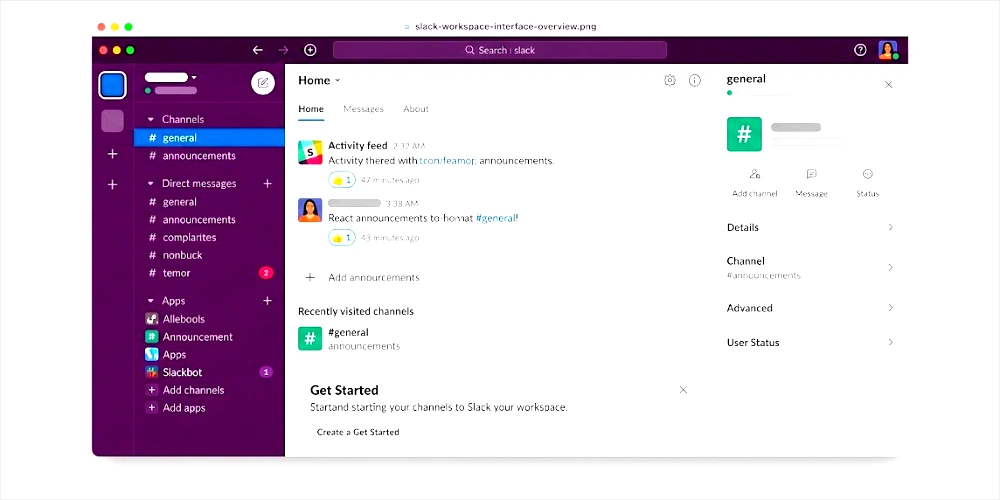
Table of Contents
What Is Slack?
Slack is a team communication app built around channels, direct messages, and searchable conversation history. Instead of sending information back and forth in long email chains, teams create dedicated spaces — channels — for specific projects, departments, or topics, and everyone involved can see the conversation in one place.
The core problem it solves is fragmented communication. Email is built for formal, one-to-one or broadcast messages, and it doesn’t handle fast back-and-forth conversation well. It is built for real-time, ongoing discussion, so a question can get answered in seconds rather than sitting in an inbox for hours.
A few things separate Slack from traditional email:
- Conversations are organized by channel rather than by inbox, so context doesn’t get lost.
- Messages are searchable across the whole workspace (with some limits on the free plan).
- Files, links, and integrations sit next to the conversation instead of being buried in attachments.
- Notifications and mentions can be tuned so people only see what’s relevant to them.
Teams use it for daily standups, project coordination, quick questions, sharing files, running automated workflows, and keeping remote or hybrid teams connected in something closer to real time. Some people also use it for personal communities, hobby groups, or freelance client work, though its main audience is professional teams and organizations.
How Does Slack Work?
Slack organizes everything around a few core building blocks.
Slack Workspaces
A workspace is the overall container for a team or organization — think of it as a virtual office. Everyone in the same company, project, or group usually joins the same workspace, and all the channels, direct messages, and connected apps live inside it. Free, Pro, and Business+ plans include one workspace; Enterprise+ supports unlimited workspaces for large organizations that need to separate departments or business units.
Channels
Channels are where most conversation happens. They can be:
- Public channels — visible and joinable by anyone in the workspace.
- Private channels — visible only to invited members, useful for sensitive projects or HR matters.
- Project-based channels — created around a specific initiative and often archived once the project ends.
- Department channels — ongoing spaces for teams like marketing, engineering, or sales.
Clear channel naming (like #marketing-q4-campaign instead of #general2) makes it much easier for people to find the right conversation later.
Direct Messages
Direct messages (DMs) let people talk one-to-one or in small private groups without creating a whole channel. They’re best for quick, informal questions that don’t need a wider audience.
Threads
Threads keep side conversations attached to the original message instead of scattering replies through the main channel feed. This is one of the features that makes busy channels easier to follow, since a reply-heavy discussion doesn’t push everything else out of view.
Mentions and Notifications
It uses @mentions to flag specific people or groups (for example, @channel or a custom team group) so they get notified even if they’re not actively reading. Notification settings can be customized per channel, keyword alerts can be set up for terms you care about, and Do Not Disturb hours can silence notifications outside of work time.
Key Features of Slack
Slack has grown well beyond simple messaging. Its major features include:
- Channels and direct messages for organized, searchable conversation.
- Threads to keep side discussions contained.
- File sharing directly inside conversations, with previews for common file types.
- Search across messages, files, and people (subject to plan-based history limits).
- Huddles — lightweight audio and video calls with screen sharing, built right into channels and DMs.
- Clips — short recorded audio or video messages you can share asynchronously instead of scheduling a live call.
- Canvas — a flexible surface for building documents, checklists, and reference material directly inside it.
- Lists — a built-in way to track tasks and manage lightweight projects without leaving it.
- Workflow Builder — a no-code tool for automating routine tasks, like intake forms or recurring reminders.
- Apps and integrations — connections to tools like Google Drive, Jira, Salesforce, and thousands of others through the it App Directory.
- Admin and security tools — including analytics dashboards, access logs, and (on paid plans) single sign-on and data retention controls.
Not every feature is available on every plan — Canvas, Lists, and unlimited integrations, for example, require at least a Pro plan. Always check its official pricing page for the most current breakdown, since feature availability by tier can change.
Slack AI
Slack has built a set of AI features directly into the product, generally referred to as AI in it. According to it’s own documentation, these AI tools run inside Slack’s infrastructure, and the company states that it does not share customer data with large language model providers or use customer data to train outside models.
Current AI capabilities include:
- Thread and channel summaries — quick catch-ups on conversations you missed.
- Huddle notes — automatic meeting summaries with transcripts, key takeaways, and action items.
- AI search — asking a question in the search bar and getting a direct answer pulled from conversations and files.
- Daily recaps — a digest of activity across your channels and projects.
- File summaries — quick summaries of documents shared in it.
- AI message explanations — plain-language explanations of jargon or acronyms used in a team’s conversations.
- AI workflow generation — building an automated workflow from a text prompt.
- Slackbot is described by it as a personal AI agent that can answer questions using conversations, files, and projects inside a workspace.
Availability varies by plan. Basic AI features like conversation summaries are included on the Free and Pro plans, while more advanced tools — daily recaps, file summaries, AI search, translations, and full Slackbot access — are part of Business+ and Enterprise+. It has also been rolling out limited Slackbot trials to Free and Pro users, so exact access can shift over time. Because AI features are one of the areas it updates most often, it’s worth checking the current plan comparison on its pricing page before assuming a specific capability is included.
How to Create a Slack Account
Getting started with Slack takes just a few minutes:
- Go to the official it website or download the app from the App Store, Google Play, or its own download page.
- Choose to create a new workspace or join an existing one if you have an invitation.
- Enter your email address and basic account details.
- Verify your email if prompted.
- Create or join a workspace tied to your team or organization.
- Set up your profile with a name, photo, and status.
- Join relevant channels for your team or project.
- Start messaging your team.
If a colleague or manager invites you, you’ll usually get an email or link that drops you straight into the right workspace, skipping the workspace-creation step.
How to Create a Slack Workspace
If you’re setting up Slack for a new team, you’ll need to create the workspace yourself:
- Choose a workspace name, usually your company or team name.
- Add basic details about your organization or project, if prompted.
- Invite team members by email or shareable invite link.
- Create initial channels for your main teams or projects (for example, #general, #announcements, and project-specific channels).
- Set permissions for who can create channels, post in certain channels, or invite new members.
- Do some light organization early on — archived or duplicate channels get messy fast once a workspace grows.
Workspace owners and admins can adjust most of these settings later from the admin panel, so it’s fine to start simple and refine as the team grows.
How to Use Slack
Once you’re set up, day-to-day use is straightforward.
Sending a Message
Click into a channel or DM, type your message in the text box, and press Enter to send.
Joining a Channel
Use the “+” icon next to Channels in the sidebar, then browse or search for the channel you want to join.
Creating a Channel
Click the same “+” icon, select “Create a channel,” name it, choose public or private, and add members.
Replying in Threads
Hover over a message and click “Reply in thread” to keep your response attached to the original message instead of posting it into the main channel.
Mentioning Team Members
Type @ followed by someone’s name (or a group name) to notify them directly.
Sharing Files
Drag and drop a file into the message box, or click the paperclip icon to upload one from your device or a connected app like Google Drive.
Searching Messages
Use the search bar at the top of it to look up messages, files, or people by keyword.
Managing Notifications
Go into a channel’s notification preferences, or your overall it settings, to control when and how you’re alerted.
Using Slack on Multiple Devices
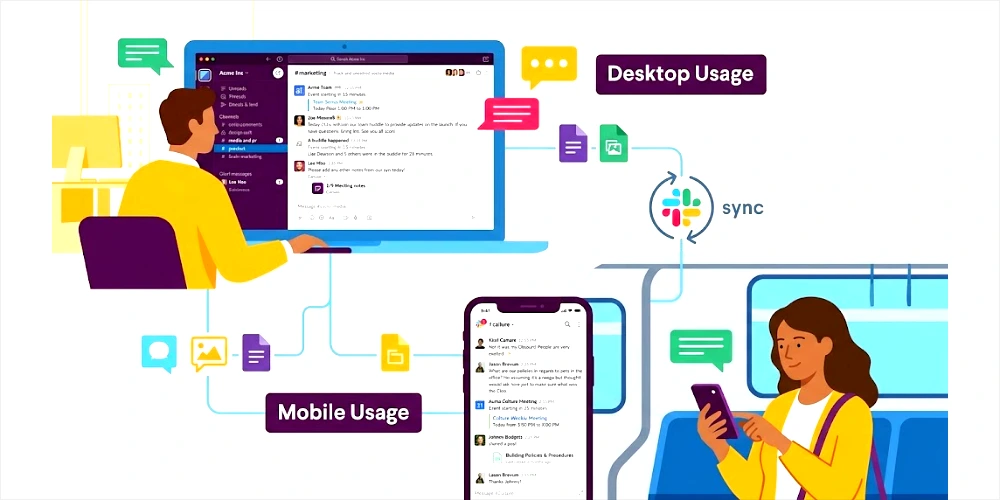
Slack syncs automatically across desktop, mobile, and web, so you can start a conversation on one device and pick it up on another without losing context.
Slack for Remote and Hybrid Teams
It is widely used by distributed teams because it supports both real-time and asynchronous communication. Channels keep project updates in one place instead of scattered across time zones and inboxes; huddles offer a lightweight way to jump on a quick call; and clips let people share updates without needing everyone online at the same time.
That said, Slack doesn’t automatically make a remote team more productive. Its usefulness depends heavily on how a team sets it up — clear channel structures, sensible notification habits, and agreed-upon norms (like when to use a thread versus a new message) make a much bigger difference than the tool itself. Teams that dump everything into one unorganized channel often find it just as chaotic as email once they scale.
Slack Integrations
Integrations let it connect with the other software a team already uses, so information and notifications show up where the conversation is happening. Its App Directory lists thousands of apps across categories, including:
- Google Workspace — Drive, Calendar, and Gmail notifications.
- Microsoft tools — Outlook and OneDrive connections for mixed-stack teams.
- Project management software — tools like Jira, Asana, and Trello for task updates inside channels.
- Developer tools — GitHub and CI/CD pipeline alerts.
- Calendar applications — meeting reminders and scheduling.
- CRM platforms — including Salesforce, which it has integrated closely given the two companies are now part of the same corporate group.
- Cloud storage — Dropbox and similar file services.
- Automation tools — like Zapier, for connecting it to apps outside its native directory.
Integrations are unlimited on paid plans and capped at 10 apps on the Free plan. Some third-party automation platforms used alongside it, such as Zapier or Workato, may carry their own separate subscription costs.
Slack Pricing and Free Plan
Slack’s pricing, checked against its official pricing page, currently breaks down into four tiers:
| Plan | Price (billed annually) | Price (billed monthly) | Best for |
|---|---|---|---|
| Free | $0 | $0 | Small teams just getting started |
| Pro | $7.25 per user/month | $8.75 per user/month | Growing teams that need full history and unlimited apps |
| Business+ | $15 per user/month | $18 per user/month | Teams needing advanced AI, SSO, and compliance features |
| Enterprise+ | Custom (contact sales) | Custom (contact sales) | Large organizations with multiple workspaces and strict security needs |
Slack occasionally runs limited-time discounts on Pro and Business+ for new customers, so the price shown at checkout can differ from the standard list price. Prices can also vary by region and currency, and enterprise contracts are typically negotiated directly with its sales team, so always confirm current numbers on its official pricing page before budgeting.
Key differences between tiers:
- Message history: limited to the most recent 90 days on Free; unlimited on Pro, Business+, and Enterprise+.
- App integrations: capped at 10 on Free; unlimited on paid plans.
- Huddles and Slack Connect: limited to one-to-one on Free; group huddles and broader external collaboration on paid plans.
- AI features: basic summaries on Free and Pro; advanced AI (daily recaps, file summaries, translations, broader Slackbot access) on Business+ and Enterprise+.
- Security and compliance: SSO, SCIM provisioning, data residency, and audit logs are reserved for Business+ and Enterprise+, with the most advanced controls (like HIPAA support and legal holds) limited to Enterprise+.
Is Slack Free to Use?
Yes, it offers a genuinely usable free plan. On Free, you get unlimited members, channels, one-to-one huddles, basic AI conversation summaries, and up to 10 app integrations. The main catch is message history: only the most recent 90 days of messages and files are searchable, and anything older becomes inaccessible unless you upgrade.
For a very small team or a casual project, the free plan can be enough. Individuals can absolutely use it without a company behind them — for a community, a freelance client channel, or a personal project. Once a team relies on searching old conversations, needs more than 10 integrations, or wants group video calls and advanced security, a paid plan becomes necessary.
Slack Desktop and Mobile Apps
Slack is available across all major platforms:
- Windows (Windows 10 and 11)
- macOS (recent versions, with native support for both Intel and Apple Silicon Macs)
- Linux (available through official .deb, .rpm, and Snap packages on supported distributions)
- Android
- iOS
- Web browser (Chrome, Firefox, Safari, and Edge)
Always download it from the official Slack website, the Microsoft Store, the Mac App Store, Google Play, or the Apple App Store rather than third-party APK or installer sites, which can bundle modified or unsafe versions of the app.
Advantages of Slack
- Organized conversations by channel instead of one crowded inbox.
- Threads keep side discussions from cluttering the main channel.
- Searchable message and file history (with plan-based limits).
- A large library of integrations with other business tools.
- Built-in support for remote and hybrid teams through huddles, clips, and asynchronous updates.
- Cross-platform availability, so the experience is consistent everywhere.
- Workflow automation for repetitive tasks, without needing to code.
- A usable free plan for small teams or individuals.
Disadvantages of Slack
- Notification overload is a common complaint, especially in large or highly active workspaces.
- Too many channels can become as disorganized as an overflowing inbox if no one manages them.
- Fast-moving conversations can fragment important decisions across threads and channels.
- There’s a learning curve for teams moving from email-only communication.
- Several useful features, including advanced AI and full message history, sit behind paid plans.
- Subscription costs add up quickly for larger organizations, especially at the Business+ tier.
- Constant messaging can be distracting if a team doesn’t set clear norms around when and how to use it.
Slack vs Email
| Feature | Slack | |
|---|---|---|
| Real-time communication | Strong | Weak |
| Team channels | Yes | No |
| Direct messaging | Yes | Limited (inbox-based) |
| File sharing | Inline, with previews | Attachment-based |
| Search | Fast, cross-workspace | Varies by email client |
| Notifications | Highly customizable | Basic |
| Project discussions | Organized by channel | Scattered across threads |
| External communication | Supported via Slack Connect | Native strength |
| Long-form communication | Not ideal | Well suited |
Slack tends to win for fast internal collaboration, quick decisions, and keeping a project’s context in one place. Email still has an edge for formal communication, long-form writing, and reaching people outside your organization who don’t use Slack.
Slack vs Microsoft Teams
Both platforms cover team messaging and channels, but they lean in different directions. it is generally seen as having a cleaner, more flexible interface and a broader third-party app ecosystem, plus tight integration with Salesforce since the two companies merged. Microsoft Teams has a natural advantage for organizations already using Microsoft 365, since it’s bundled with Outlook, SharePoint, and Office apps and often included in existing Microsoft licensing.
Both offer huddles or meetings, file sharing, and integrations, though Teams’ meeting tools are generally considered more mature given Microsoft’s background in video conferencing through Skype and Teams itself. Pricing approaches also differ — Teams is often bundled into Microsoft 365 plans, while it is priced and sold as a standalone product. Neither platform is universally better; the right choice usually comes down to which ecosystem — Google/Salesforce-adjacent tools or Microsoft 365 — your organization already relies on.
Slack Alternatives
If Slack doesn’t fit your team’s needs or budget, a few credible alternatives are worth considering:
- Microsoft Teams — a strong fit for organizations already using Microsoft 365.
- Discord — originally built for gaming communities, now also used by some startups and online communities for its voice channels and casual tone.
- Google Chat — a lighter option that integrates tightly with Google Workspace.
- Mattermost — an open-source, self-hostable option favored by teams with strict data control requirements.
- Rocket.Chat — another open-source alternative aimed at organizations wanting to host their own chat infrastructure.
The right alternative depends on your priorities: ecosystem fit (Microsoft or Google), self-hosting and data control (Mattermost, Rocket.Chat), or a more casual, community-style tone (Discord).
Is Slack Safe and Secure?
Slack includes standard security measures across all plans, including data encryption in transit and at rest, two-factor authentication, and native device management controls. Paid plans add stronger protections: access logs to detect suspicious sign-ins, single sign-on (OAuth on Pro, SAML-based on Business+, and multi-SAML support on Enterprise+), SCIM-based user provisioning, and — at the Enterprise+ level — features like data loss prevention, legal holds, audit logs, and support for HIPAA compliance requirements.
According to its own documentation, AI features run within its trusted infrastructure, and the company states it does not share customer data with outside large language model providers or use that data to train external models.
No platform is “100% secure,” and a lot of real-world risk comes down to user behavior — weak passwords, ignoring multi-factor authentication where it’s available, or clicking suspicious links shared in a channel. Workspace admins play a large role here too, since permission settings and app approvals directly affect how exposed a workspace is. For the most current and authoritative details, check its official security and trust documentation.
Tips for Using Slack Effectively
- Keep channels organized and archive ones that are no longer active.
- Use threads for side discussions instead of cluttering the main channel.
- Avoid unnecessary @mentions, especially broad ones like @channel.
- Configure notifications so you’re alerted to what actually matters.
- Use clear, descriptive channel names.
- Search before asking a question that’s likely already been answered.
- Keep important reference material in Canvas or pinned messages instead of letting it scroll away.
- Use status indicators to signal availability or focus time.
- Avoid sending messages just to say “ok” or “thanks” in busy channels — a reaction emoji often works better.
- Set basic team norms for when to use it versus a meeting or email.
Common Slack Problems and Solutions
Slack not opening: Restart the app, check your internet connection, and confirm its status page isn’t reporting an outage.
Notifications not appearing: Check your notification preferences at both the channel and account level, and confirm system-level notification permissions are enabled for it.
Messages not syncing: Sign out and back in, or check whether you’re running an outdated app version that needs an update.
Login problems: Confirm you’re using the correct workspace URL and email, and reset your password if needed.
Slow performance: Close unused workspaces, clear the app cache, or try the web version to see if the issue is specific to the desktop app.
Missing channels: Confirm you’re actually a member — some channels are private and require an invitation to appear in your sidebar.
File upload problems: Check the file size and type against its limits, and confirm your internet connection is stable.
Search problems: Remember that the Free plan only searches the most recent 90 days of history — older messages won’t appear in results.
1. What is Slack used for?
Slack is used for team communication, project coordination, file sharing, and workplace collaboration through organized channels and direct messages.
2. Is Slack free?
Yes, Slack has a free plan with unlimited members and channels, though message history is limited to the most recent 90 days and integrations are capped at 10.
3. Is Slack better than email?
Slack is generally better for fast, real-time team conversation, while email remains stronger for formal communication and reaching people outside your organization.
4. Can I use Slack without a company?
Yes, individuals can create a workspace for personal projects, communities, or freelance work without needing a registered business.
5. How do I create a Slack account?
Visit Slack’s website or app, sign up with your email, verify your account, and then create or join a workspace.
6. How do I join a Slack workspace?
You typically need an invitation link or email from an existing workspace member or admin.
7. What is a Slack channel?
A channel is a dedicated space for a specific topic, project, or team where members can post messages, share files, and hold discussions.
Final Verdict
Slack is a mature, well-established team communication platform built around channels, direct messaging, and a large ecosystem of integrations and AI-assisted features. It’s a strong fit for teams that want organized, searchable conversation instead of scattered email threads, and it scales from solo users and small businesses up to large enterprises with strict security requirements.
Its free plan is genuinely usable for small teams, but the 90-day history limit and capped integrations mean most growing organizations eventually move to Pro or Business+. Whether Slack is worth the cost comes down to how heavily a team depends on message history, integrations, and administrative controls — for teams that will actually use those features, Slack remains one of the more capable options in the collaboration software space; for very small or budget-conscious teams, the free plan or a lighter alternative may be enough.