
How to Use ChatGPT for Free: A Beginner’s Guide (2026)
now
10MB
1.2026.237.
1B+
Description
If you’ve never touched an AI chatbot before, the idea of “just start typing” can feel oddly intimidating. What do you even say to it? Where do you click? Is it actually free, or is there a catch waiting a few messages in?
The short version: yes, you can use ChatGPT for free, and getting started takes less time than making a cup of coffee. This guide walks through exactly how to use ChatGPT for free — creating an account, opening your first chat, writing prompts that actually work, and understanding what the free plan does and doesn’t include.
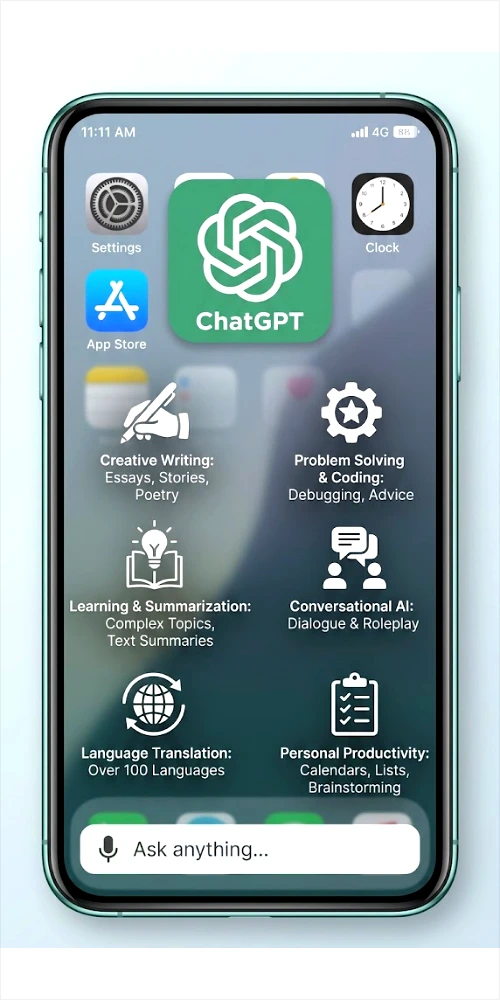
One thing worth saying upfront: ChatGPT‘s free-plan features and usage limits change fairly often. OpenAI has adjusted what’s included in the free tier more than once in the past year alone. Everything here reflects how the free plan generally works, but for the current specifics — models included, daily limits, available tools — check OpenAI’s own help pages before you rely on anything time-sensitive.
Table of Contents
What Is ChatGPT?
ChatGPT is a chatbot built by OpenAI that you talk to using ordinary written language. You type a question or request, and it writes back a response — usually within a few seconds.
Under the hood, it’s powered by a large language model, which is a type of AI trained on huge amounts of text so it can predict and generate human-like writing. You don’t need to understand the technical side to use it. In practice, it works more like texting a very well-read assistant than operating a piece of software.
People use ChatGPT for things like:
- Explaining a confusing topic in plain language
- Drafting emails, essays, or social media posts
- Brainstorming ideas for a project, gift, or business
- Summarizing long articles or documents
- Practicing a new language or checking grammar
- Getting help understanding or writing code
- Planning schedules, meals, trips, or study routines
It’s popular because it’s fast, flexible, and doesn’t require any special skill to start — you describe what you need in your own words.
Is ChatGPT Free to Use?
Yes. ChatGPT has a free plan that anyone can sign up for at chatgpt.com, and you don’t need a credit card to create an account or start chatting.
On the free plan, you can hold conversations, ask questions, get writing help, search the web through ChatGPT, and use a range of built-in tools. Some capabilities — such as image generation, file uploads, and access to more advanced reasoning tools — are limited on the free tier compared to paid plans, and OpenAI adjusts exactly where those limits sit over time.
The reason free access has limits at all comes down to cost: running these models takes significant computing power, so OpenAI reserves its most advanced models and highest usage caps for paid subscribers, while still keeping a genuinely usable free option open to everyone.
The core difference between free and paid plans usually isn’t “can you use it or not” — it’s how much you can do, how advanced the underlying model is, and how many extra tools (like deep research or higher image limits) you get access to. We’ll break that down in more detail further down.
How to Use ChatGPT for Free
Here’s the process from a completely blank start.
Step 1: Open ChatGPT
Go to chatgpt.com in any web browser — Chrome, Safari, Edge, or Firefox all work fine. This is the official site run by OpenAI, so it’s the safest place to start. Avoid third-party sites or downloads that claim to offer “ChatGPT” outside of OpenAI’s own website and official apps.
Step 2: Create or Sign In to an Account
You’ll be prompted to sign up or log in. You can typically create an account using an email address, or sign in with an existing Google, Microsoft, or Apple account to skip typing a new password.
Follow the on-screen instructions to verify your account (usually a confirmation email or code). Never share your password or verification codes with anyone else — OpenAI will never ask for them outside the official sign-in process.
Step 3: Start a New Chat
Once you’re logged in, you’ll land on the main chat screen. There’s usually a “New chat” button, plus a text box at the bottom of the screen where you type your message. That text box is where everything happens.
Step 4: Type Your Question or Prompt
Click into the text box and type what you want. You don’t need special formatting or commands — plain sentences work best. A few beginner-friendly examples:
- “Explain photosynthesis in simple words.”
- “Help me write a professional email asking for a deadline extension.”
- “Create a 7-day English learning plan for a beginner.”
- “Summarize this paragraph: [paste your text].”
- “Give me five ideas for a blog post about home gardening.”
Press Enter or click the send button, and ChatGPT will generate a response, usually within a few seconds.
Step 5: Review and Improve the Answer
Read the response carefully rather than accepting it at face value. ChatGPT can be wrong, outdated, or overly confident about incorrect details, especially with specific facts, dates, statistics, or niche topics. If something seems off, ask it to double-check itself, or verify important details through a separate, reliable source.
If the answer isn’t quite what you wanted, just reply and ask for changes — shorter, more formal, more examples, a different angle. This back-and-forth is a normal part of using it well.
How to Use ChatGPT for Free Without Paying
You don’t need a paid plan to get real value out of ChatGPT. Here’s what the free tier is genuinely useful for:
Writing. Drafting emails, cover letters, captions, outlines, or first drafts of articles. It won’t replace your own editing judgment, but it’s a strong starting point.
Learning. Ask it to explain a concept at different difficulty levels — “explain it like I’m a beginner” or “explain it like I already know the basics.”
Brainstorming. When you’re stuck, ChatGPT is good at generating a wide list of options quickly, which you can then narrow down yourself.
Translation. Basic translation and rephrasing between languages, though for anything official or legal, a human translator is still safer.
Summarization. Paste in a long article or set of notes and ask for a short summary, key takeaways, or bullet points.
Coding assistance. Explaining error messages, writing small snippets, or walking through what a block of code does.
Study plans. Turning a vague goal (“I want to learn Spanish”) into a structured weekly plan.
Grammar and clarity. Polishing sentences, fixing tone, or making writing more concise.
Everyday problem-solving. From meal planning to comparing two options, it’s a decent thinking partner.
A quick note on limits: if you ever hit a usage cap or find a feature locked behind a paid plan, the right move is simply to wait, come back later, or consider whether upgrading fits your needs. Using unofficial tools, modified apps, or methods that claim to “unlock” free unlimited access isn’t safe, isn’t authorized by OpenAI, and can put your account or data at risk.
How to Write Better ChatGPT Prompts
The quality of what you get out of ChatGPT depends heavily on what you put in. A vague prompt gets a vague answer.
A useful formula:
Task + Context + Requirements + Desired Format
Bad prompt: “Write about SEO.”
Better prompt: “Write a beginner-friendly 1,000-word guide explaining SEO for new bloggers. Use simple English, H2 headings, practical examples, and a short conclusion.”
The second version works better because it tells ChatGPT exactly who the reader is, how long the response should be, what tone to use, and how to structure it. Instead of guessing what you want, it has clear instructions to follow.
A few more tips:
- Mention your audience (“explain this to a 10-year-old” vs. “explain this to a software engineer”)
- Set a length (“in two sentences” or “in about 300 words”)
- Ask for a specific format (a table, a numbered list, a formal letter)
- If the first answer isn’t right, refine it rather than starting over — say what to change
Examples of Useful Free ChatGPT Prompts
For students
- “Explain the causes of World War I in simple terms, then quiz me with five questions.”
- “Turn these lecture notes into a one-page summary: [paste notes].”
For bloggers
- “Give me 10 blog post ideas about budget travel for solo travelers.”
- “Suggest three catchy titles for a post about morning routines.”
For English learners
- “Correct the grammar in this paragraph and explain each fix: [paste text].”
- “Give me five common English phrases used in job interviews.”
For job seekers
- “Help me rewrite my resume bullet points to sound more results-focused.”
- “Write a short, polite follow-up email after a job interview.”
For teachers
- “Create a 20-minute lesson plan introducing fractions to 4th graders.”
- “Write five multiple-choice questions about the water cycle.”
For small businesses
- “Write a friendly Instagram caption announcing a weekend sale.”
- “Draft a short FAQ page for a local bakery website.”
For programmers
- “Explain what this error message means: [paste error].”
- “Add comments to this function explaining what each part does.”
For researchers
- “Summarize the main argument of this abstract in plain language: [paste abstract].”
- “List possible counterarguments to this claim: [paste claim].”
For everyday users
- “Suggest a 3-day meal plan using chicken, rice, and vegetables.”
- “Help me write a polite message declining a wedding invitation.”
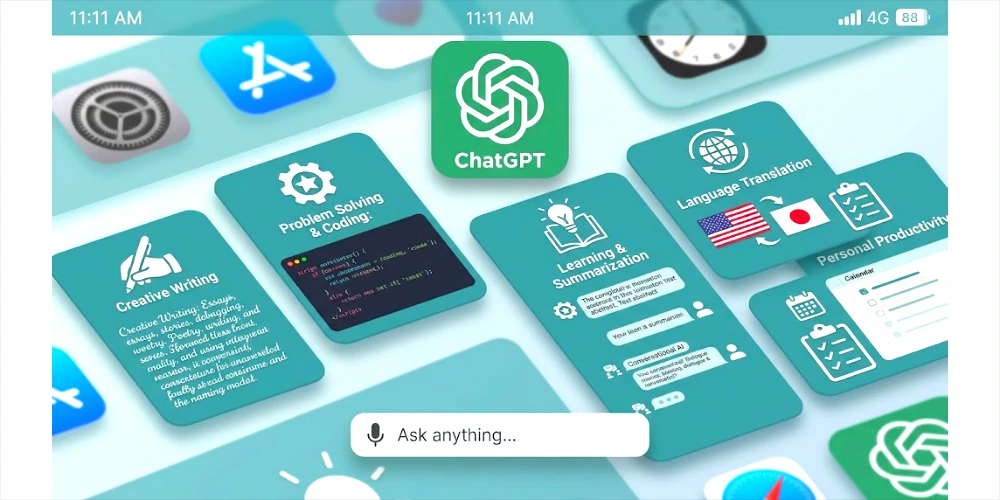
How to Use ChatGPT on a Phone
ChatGPT has an official mobile app for iOS and Android. To use it:
- Open the App Store (iPhone) or Google Play Store (Android).
- Search for “ChatGPT” and confirm the app is published by OpenAI — check the developer name before downloading to avoid unofficial copycat apps.
- Install and open the app, then sign in with the same account details you’d use on the website (or create a new account).
- Tap to start a new chat and type your message, just as you would on the web.
- Many versions of the app include a voice mode, letting you speak instead of type — look for a microphone icon if you want to try it.
Not every feature available on the website is guaranteed to be available on mobile, and the reverse is also true, so if something seems missing, try checking the other platform or OpenAI’s help center.
How to Use ChatGPT on a Computer
Using ChatGPT on a desktop or laptop is straightforward:
- Open the official ChatGPT website in your browser.
- Sign in, or create a free account if you’re new.
- Click “New chat” to start a conversation.
- Type your prompt into the message box and send it.
- Read the response, then ask follow-up questions to refine it, dig deeper, or request a different format.
There’s no software installation required to use the web version — it runs entirely in your browser.
What Can You Do With Free ChatGPT?
| Use Case | Example |
|---|---|
| Learning | Explain difficult topics in simple language |
| Writing | Draft articles, essays, and emails |
| English practice | Correct grammar and improve phrasing |
| Brainstorming | Generate lists of ideas or angles |
| Coding | Explain code or troubleshoot errors |
| Research assistance | Organize and summarize information |
| Summarization | Condense long text into key points |
| Planning | Build schedules, checklists, and routines |
Keep in mind that exactly which tools are available — and how often you can use them — depends on your current free plan and account, and OpenAI updates these details periodically.
ChatGPT Free vs Paid Plans
Here’s a general, non-exhaustive comparison. Treat exact limits and prices as changeable — always confirm current details on OpenAI’s official pricing page before deciding.
| Factor | Free Plan | Paid Plans |
|---|---|---|
| General access | Available to anyone with an account | Available with a paid subscription |
| Available capabilities | Core chat, web search, limited tools | Broader toolset, often including deep research and higher-tier models |
| Usage limits | More restrictive | Higher usage caps |
| Priority access | Standard access, may slow during high demand | Often prioritized during peak times |
| Advanced features | Some advanced tools limited or unavailable | Typically includes more advanced reasoning and creative tools |
| Who should consider upgrading | Casual or occasional users | Frequent users, professionals, and those needing higher limits or advanced tools |
OpenAI regularly changes what’s included in each plan, along with pricing and usage limits, so don’t treat any specific number as permanent — check the official site if a current figure matters to your decision.
Common Problems When Using ChatGPT for Free
Why can’t I access ChatGPT? This is usually a temporary outage, a login issue, or a regional restriction. Try refreshing, checking your internet connection, or waiting a few minutes.
Why did ChatGPT stop responding? Long responses can occasionally cut off mid-answer, especially during high traffic. Try asking it to “continue” or resend a shorter version of your request.
Why am I seeing a usage limit? Free accounts have usage caps on certain models or tools. If you hit one, you’ll typically be told when access resets, or given the option to continue with a different available model.
Why is a particular feature unavailable? Some tools (like advanced image generation or deep research) are limited or restricted on the free tier. This isn’t a bug — it’s how the plan is structured.
Why is ChatGPT giving an incorrect answer? AI models can produce confident-sounding but inaccurate information, sometimes called “hallucination.” Always verify anything factual, technical, or high-stakes through another source.
What should I do if the service is temporarily unavailable? Check OpenAI’s status page, wait a bit, and try again later. Outages are usually resolved fairly quickly.
Tips for Getting Better Results From ChatGPT
- Be specific about what you want, rather than asking broadly
- Provide relevant context (who it’s for, why you need it, any constraints)
- Define your intended audience
- Specify the format you want (list, table, paragraph, email)
- Ask for examples when a concept feels abstract
- Break complicated tasks into smaller steps instead of one giant request
- Ask follow-up questions to dig deeper or clarify
- Request revisions instead of starting over from scratch
- Verify anything important — facts, numbers, quotes, legal or medical information — through a separate reliable source
Is ChatGPT Safe to Use for Free?
Generally, yes, for everyday tasks — but treat it the way you’d treat any online service that stores your activity: with some caution about what you share.
Avoid entering highly sensitive information into ChatGPT, including:
- Passwords
- Banking or financial account details
- Payment card numbers
- Private authentication codes
- Confidential business information
- Sensitive personal documents (IDs, medical records, legal contracts)
It’s worth reviewing OpenAI’s current privacy policy and data controls directly on their official site, since settings around data usage and retention have changed over time and may not match what you remember from an earlier version of the product.
Is ChatGPT free?
Yes. ChatGPT offers a free plan with no credit card required to sign up.
Can I use ChatGPT without paying?
Yes. You can create a free account and use core chat features without ever entering payment information.
How do I use ChatGPT for free?
Go to chatgpt.com, create a free account or sign in, start a new chat, and type your question or request.
Do I need an account to use ChatGPT?
In most cases, yes — you’ll need to create a free account to save conversations and access the full experience.
Can I use ChatGPT on my phone for free?
Yes. The official ChatGPT app is available for free on both iOS and Android.
Can I use ChatGPT on a PC for free?
Yes. Simply visit the official website in any browser and sign in or create a free account.