
Framer: The AI Design Agent for Every Step From Idea to Launch
now
124MB
200K
Description
A few years ago, Framer was mostly known among product designers as a prototyping tool — a place to make a Figma file feel alive before handing it to a developer. That’s not what most people mean when they say “Framer” anymore. Today it’s a full website builder: design, content management, hosting, and AI-assisted layout generation, all living in one browser tab.
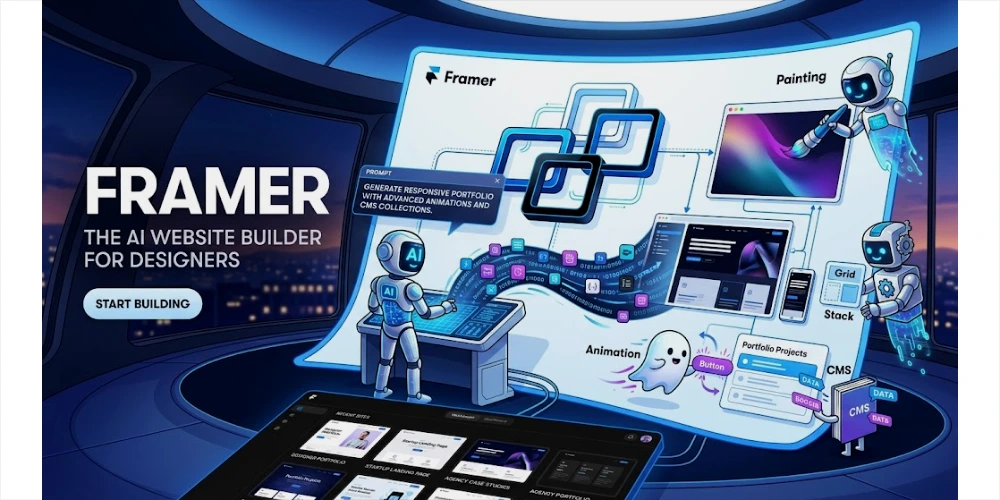
That shift is worth pausing on, because it explains a lot about who Framer works well for and who it doesn’t. It grew out of a design tool, not a blogging platform or a page-builder plugin, and that DNA still shows in how it behaves. If you’ve used Figma, the interface will feel oddly familiar. If you’ve only ever used WordPress or Squarespace, there’s a short adjustment period.
This article walks through what Framer actually is, how its AI features work in practice, what it costs, and how it stacks up against WordPress and Webflow — so you can decide whether it’s the right tool for your next website, without having to sign up and find out the hard way.
Table of Contents
What Is Framer?
Framer is a browser-based website builder that combines visual design, a built-in CMS, hosting, and AI-assisted layout generation in one platform, letting people design and publish responsive websites without writing code.
Framer AI started life as a design and prototyping app aimed at UI/UX designers who wanted more realistic, interactive mockups than static Figma frames could offer. Over time, the company rebuilt it around a simpler idea: if you can design something that looks and behaves like a real website, why should you need a separate step to actually turn it into one? So Framer added publishing, custom domains, a content management system, and hosting, and it became something closer to a competitor for Webflow and Wix than a companion tool for Figma.
How Does Framer Work?
The general path from a blank canvas to a live website usually looks like this:
- Start with an idea or prompt. You can begin from scratch, pick a template, or describe what you want and let Framer generate a starting layout.
- Generate or create the initial design. It builds out a first draft — sections, structure, and placeholder content you can edit.
- Customize the layout. Adjust spacing, colors, typography, and component structure using the visual editor.
- Add text, images, animations, and interactions. Swap in real content and add scroll effects, hover states, or transitions.
- Build pages and navigation. Create additional pages (About, Services, Contact) and link them together.
- Add CMS content when needed. For blogs, case studies, or product listings, set up collections that you can update without touching the design.
- Optimize for SEO and performance. Set page titles, meta descriptions, and image alt text; check load speed.
- Connect a domain. Point your own domain at the site instead of using a Framer subdomain.
- Publish the website. Go live, with hosting handled by Framer AI itself.
None of these steps are unique to Framer AI on their own — most website builders follow a similar arc. What’s different is that steps one and two can now be largely automated by AI, which is the part worth looking at more closely.
Framer AI: What Can It Do?
Framer’s AI tools are best understood as a head start, not an autopilot. You can describe a website in plain language — “a landing page for a coffee subscription business” — and Framer AI will generate a layout with sections, structure, and placeholder copy already in place. From there, you’re expected to take over: edit text, swap images, adjust spacing, and make design decisions that reflect your actual brand.
In practice, this is useful for a few specific things:
- Generating layouts from a prompt, so you’re not starting from a blank page.
- Creating sections and page structures — heroes, feature grids, pricing tables — that follow common web design patterns.
- Assisting with draft copy, which you’ll still want to edit for tone and accuracy.
- Speeding up iteration, letting you try a few different layout directions quickly instead of building each one by hand.
Key Features of Framer
Visual Website Design
Framer’s editor works on a canvas similar to Figma, with layers, frames, auto-layout-style stacks, and constraints. You can build responsive layouts by defining how elements resize and reflow, rather than relying entirely on pre-set templates.
AI-Powered Design
Beyond generating a first draft from a prompt, Framer’s AI tools can help restructure sections, suggest layout variations, and speed up the early, exploratory phase of building a page.
Responsive Design
Framer AI
Lets you design and preview separate breakpoints for desktop, tablet, and mobile, so you can fine-tune spacing, font sizes, and layout shifts for each screen size rather than hoping a single design adapts well everywhere.
CMS
Framer’s CMS lets you set up structured content — a blog, a news section, case studies, a portfolio, or a product catalog — as a “collection” that’s separate from the page design. That means you (or a client) can add a new blog post or portfolio piece later without touching the underlying layout.
Animations and Interactions
Scroll-triggered animations, hover states, and page transitions can be set up visually, without writing JavaScript. This is one of the areas where Framer AI tends to stand out compared to more content-focused builders — it’s genuinely built for motion design.
Templates
Framer AI offers a library of templates covering common site types — portfolios, SaaS landing pages, agency sites — that can be fully customized rather than used as-is. They’re a reasonable starting point if you don’t want to design from a blank canvas, though a template-based site still needs real editing to avoid looking generic.
Hosting and Publishing
Hosting is built into the platform, so there’s no separate hosting provider to set up. Publishing a change is generally a matter of clicking publish inside the editor.
Custom Domains
Paid plans let you connect a domain you already own, or purchase one, so the site doesn’t live on a Framer subdomain.
SEO Tools
Framer includes on-page SEO controls: editable page titles, meta descriptions, URL slugs, image alt text, and sitemap generation. It’s also built to be reasonably fast and mobile-responsive by default, both of which matter for search performance. That said, using Framer doesn’t automatically guarantee better rankings — SEO also depends on content quality, backlinks, and how well the site matches what people are actually searching for.

How to Create a Website With Framer
Here’s a practical, beginner-friendly path, using a small business as an example.
Example: Creating a small business website
- Start with a template or an AI-generated layout. Choose a template close to what you need, or describe your business and let the AI generate a starting point.
- Set up your core pages. For most small businesses, that’s a Home page, an About page, a Services page, a Portfolio or Projects page, and a Contact page.
- Focus the Home page on clarity. What do you do, who is it for, and what should the visitor do next? Resist the urge to cram everything above the fold.
- Use the About page for trust. A short story, a photo, and specifics beat generic mission statements.
- Make Services concrete. List what you offer with enough detail that someone can tell if it’s right for them, ideally with pricing or a clear next step.
- Build out Portfolio or Projects with real examples, using Framer’s CMS if you expect to add more over time.
- Keep Contact simple. A form, an email address, and — if relevant — a map or address.
- Check responsiveness on mobile and tablet breakpoints before publishing; this is where a lot of first drafts fall apart.
- Fill in SEO fields for every page, then connect your domain and publish.
The whole process, for a five-page site using a template as a starting point, can realistically be done in a weekend by someone with no coding background — though a polished, brand-specific result usually takes longer.
Who Should Use Framer?
Designers get the most out of Framer, since the tool speaks their language: layers, constraints, and pixel-level control that most website builders don’t offer.
Freelancers can use it to build client sites faster than hand-coding, while still delivering something visually distinct rather than an obvious template.
Startups often use Framer AI for landing pages and marketing sites, where fast iteration and polished animation matter more than deep e-commerce functionality.
Small businesses can get a professional-looking site without hiring a developer, especially for straightforward brochure-style sites.
Agencies can use Framer to produce client work faster, though team pricing (extra editor seats) is worth factoring into project budgets.
Developers may find Framer AI more useful as a fast front end for marketing pages than as a replacement for custom application development — it’s not built for complex backend logic or highly bespoke functionality.
Beginners can get a working site up reasonably quickly, especially starting from a template, but the visual, layer-based editor has a real learning curve compared to simpler builders like Squarespace.
Advantages of Framer
- A genuinely visual, designer-friendly workflow. If you think in terms of layout and hierarchy, Framer’s editor supports that directly instead of forcing you into a rigid block system.
- AI assistance that removes the blank-page problem. Generating a first draft from a prompt saves real time, even if you rebuild half of it afterward.
- Strong animation and interaction tools. Scroll effects and transitions that would take custom code elsewhere are largely point-and-click here.
- Built-in CMS, hosting, and publishing. You’re not stitching together three different services to get a site live.
- A large template library that gives non-designers a reasonable starting point.
- Fast prototyping. Because design and publishing live in the same tool, you can go from an idea to something clickable much faster than a traditional design-then-build workflow.
Disadvantages and Limitations of Framer
- A learning curve for complete beginners. The canvas-based, Figma-like interface is powerful but not always intuitive if you’ve never designed anything before.
- A platform-specific workflow. Sites are built in Framer’s own system, which means some lock-in — moving to another platform later isn’t a simple export.
- Limits compared to fully custom development. Highly bespoke functionality, complex backend logic, or unusual technical
Framer Pricing
Framer’s pricing has changed more than once over the past couple of years, so treat the numbers below as a general guide rather than gospel — check Framer’s official pricing page before budgeting a project.
At a high level, Framer typically offers:
- A free tier, useful for testing the editor and previewing designs, usually on a Framer AI subdomain with Framer branding and some feature limits.
- A Basic paid plan aimed at individuals and small sites, generally in the $10/month range when billed annually, unlocking a custom domain, hosting, and core CMS features.
- A Pro plan aimed at businesses and growing sites, generally in the $30/month range, with expanded CMS capacity, staging, and additional features.
- A Scale plan for higher-traffic or content-heavy sites, priced noticeably higher, with expanded bandwidth, page, and CMS limits.
- A custom Enterprise tier for larger organizations needing advanced security, multiple locales, or dedicated support.
Framer vs WordPress
| Feature | Framer | WordPress |
|---|---|---|
| Ease of use | Visual, design-first editor; some learning curve | Familiar to many, but plugin-dependent complexity varies |
| Design flexibility | High, pixel-level visual control | High, but often achieved through themes and page builders |
| AI assistance | Built-in AI layout generation | Available mainly through third-party plugins |
| CMS | Built-in, simpler structure | Extremely mature and flexible, especially for large content sites |
| Hosting | Built-in, managed | Requires separate hosting (unless using WordPress.com) |
| Plugins | Limited third-party ecosystem | Enormous plugin ecosystem for nearly any feature |
| SEO control | Solid on-page tools built in | Very strong, especially with plugins like Yoast |
| Customization | Design-level customization is easy; deep backend customization is limited | Virtually unlimited with custom development |
| Learning curve | Moderate, especially for non-designers | Varies — easy for basic use, steep for advanced customization |
| Best for | Marketing sites, portfolios, landing pages, design-forward brands | Blogs, large content sites, e-commerce, sites needing deep customization |
Is Framer Good for SEO?
Framer provides the technical foundation for decent SEO: editable page titles, meta descriptions, clean URLs, alt text for images, sitemap generation, and mobile-responsive, reasonably fast-loading pages by default. Those are real, meaningful SEO fundamentals, and Framer AI handles them without requiring plugins.
But it’s worth being direct about the limits of what any website builder can do for rankings. A well-built Framer site with thin, generic content will not outrank a WordPress site with excellent, in-depth content and strong backlinks. Search rankings depend on far more than the platform — content quality, search intent match, topical authority, technical health, backlink profile, and competition all matter, often more than the builder itself. Framer AI can give you a solid technical starting point; it can’t substitute for good content or an SEO strategy. Monitoring performance through Google Search Console afterward is still necessary, regardless of which platform you build on.
Is Framer Good for Beginners?
It is approachable for beginners in the sense that you don’t need to write code to publish a real website, and the AI-generated starting layouts remove a lot of the initial blank-page anxiety. No coding knowledge is required for a standard marketing site, portfolio, or landing page.
That said, the editor’s design-tool roots mean beginners will need to learn some genuinely design-related concepts — how stacks and constraints work, how breakpoints behave, how layers are organized — that a simpler tool like Squarespace mostly hides from you. Most people find this learning curve manageable within a few hours of hands-on use, especially if they start from a template rather than a blank canvas. Where beginners tend to get stuck is less about the tool itself and more about design decisions: hierarchy, spacing, and knowing when a layout is “done.”
Is Framer Worth It?
Framer is worth it if you value visual control and interactive polish, and you’re building a marketing site, portfolio, or landing page rather than a large content platform or complex web application. The combination of a real design tool with built-in publishing and AI-assisted layout generation is a genuinely useful shortcut from idea to live site.
It’s probably not the right choice if you need an extensive plugin ecosystem, deep e-commerce functionality, or a content structure so complex that WordPress or a dedicated headless CMS would serve you better. And if your team is large, it’s worth budgeting carefully for editor seat costs before assuming the advertised plan price is your total bill.
For a freelance designer building client landing pages, a startup shipping a fast marketing site, or a small business wanting something more distinctive than a template-heavy builder, Framer is a strong option worth trying. For a large publication or an e-commerce store with complex catalog needs, it’s worth comparing carefully against WordPress or Shopify before committing.
What is Framer?
Framer is a browser-based website builder that combines visual, design-tool-style editing with a built-in CMS, hosting, and AI-assisted layout generation, letting people build and publish responsive websites without code.
Is Framer an AI website builder?
Yes, in part. Framer includes AI tools that can generate an initial layout from a text prompt, but it’s still primarily a visual design tool — the AI speeds up the starting point rather than building the whole site unassisted.
Is Framer free?
Framer offers a free tier for designing and testing, typically limited to a Framer subdomain with Framer branding. A paid plan is required to connect a custom domain and unlock most publishing features.
Is Framer good for beginners?
It’s approachable — no coding is required — but the layer-based, Figma-like editor has more of a learning curve than simpler builders like Squarespace or Wix.
Does Framer require coding?
No, standard websites can be built entirely without code. Custom code embeds are available for advanced users who want them, but they’re optional.
Is Framer good for SEO?
It provides solid technical SEO fundamentals — editable titles, meta descriptions, clean URLs, and mobile-responsive design — but rankings still depend heavily on content quality and other factors outside the platform’s control.
Final Verdict
Framer has turned a design and prototyping tool into a genuinely capable website builder, and its AI features do what good AI tools should: remove friction from the early, exploratory stage without pretending to replace human judgment. Its strongest ground is visual polish, animation, and speed from idea to launch, especially for people who already think in design terms.
It’s not the right tool for every project. Large content platforms, complex e-commerce, and highly bespoke web applications are usually better served elsewhere. But for designers, freelancers, startups, and small businesses building marketing sites, portfolios, or landing pages, Framer is a serious, modern option worth trying — not just another AI hype tool, but a platform with real design substance behind it. If that description matches what you’re building, it’s worth spending an afternoon in the free tier to see whether the workflow clicks for you.
What's new
SEO Title: Framer Review: The AI Website Builder for Designers
Meta Description: What is Framer, really? An honest look at Framer's AI website builder — features, pricing, pros, cons, and how it compares to WordPress and Webflow.
URL Slug: /framer-ai-website-builder/
Focus Keyword: Framer
Framer: The AI Design Agent for Every Step From Idea to Launch
A few years ago, Framer was mostly known among product designers as a prototyping tool — a place to make a Figma file feel alive before handing it to a developer. That's not what most people mean when they say "Framer" anymore. Today it's a full website builder: design, content management, hosting, and AI-assisted layout generation, all living in one browser tab.
That shift is worth pausing on, because it explains a lot about who Framer works well for and who it doesn't. It grew out of a design tool, not a blogging platform or a page-builder plugin, and that DNA still shows in how it behaves. If you've used Figma, the interface will feel oddly familiar. If you've only ever used WordPress or Squarespace, there's a short adjustment period.
This article walks through what Framer actually is, how its AI features work in practice, what it costs, and how it stacks up against WordPress and Webflow — so you can decide whether it's the right tool for your next website, without having to sign up and find out the hard way.
What Is Framer?
Framer is a browser-based website builder that combines visual design, a built-in CMS, hosting, and AI-assisted layout generation in one platform, letting people design and publish responsive websites without writing code.
Framer started life as a design and prototyping app aimed at UI/UX designers who wanted more realistic, interactive mockups than static Figma frames could offer. Over time, the company rebuilt it around a simpler idea: if you can design something that looks and behaves like a real website, why should you need a separate step to actually turn it into one? So Framer added publishing, custom domains, a content management system, and hosting, and it became something closer to a competitor for Webflow and Wix than a companion tool for Figma.
That history matters for how the tool feels day to day. Instead of dragging pre-built "blocks" onto a page the way Squarespace or Wix do, you're working with layers, frames, and constraints — closer to how a designer would think about a layout. For someone who already thinks visually, that's a strength. For someone who has never designed anything before, it can take a bit longer to get comfortable.
How Does Framer Work?
The general path from a blank canvas to a live website usually looks like this:
- Start with an idea or prompt. You can begin from scratch, pick a template, or describe what you want and let Framer's AI generate a starting layout.
- Generate or create the initial design. Framer builds out a first draft — sections, structure, and placeholder content you can edit.
- Customize the layout. Adjust spacing, colors, typography, and component structure using the visual editor.
- Add text, images, animations, and interactions. Swap in real content and add scroll effects, hover states, or transitions.
- Build pages and navigation. Create additional pages (About, Services, Contact) and link them together.
- Add CMS content when needed. For blogs, case studies, or product listings, set up collections that can be updated without touching the design.
- Optimize for SEO and performance. Set page titles, meta descriptions, and image alt text; check load speed.
- Connect a domain. Point your own domain at the site instead of using a Framer subdomain.
- Publish the website. Go live, with hosting handled by Framer itself.
None of these steps are unique to Framer on their own — most website builders follow a similar arc. What's different is that steps one and two can now be largely automated by AI, which is the part worth looking at more closely.
Framer AI: What Can It Do?
Framer's AI tools are best understood as a head start, not an autopilot. You can describe a website in plain language — "a landing page for a coffee subscription business" — and Framer will generate a layout with sections, structure, and placeholder copy already in place. From there, you're expected to take over: editing text, swapping images, adjusting spacing, and making the design decisions that reflect your actual brand.
In practice, this is useful for a few specific things:
- Generating layouts from a prompt, so you're not starting from a blank page.
- Creating sections and page structures — heroes, feature grids, pricing tables — that follow common web design patterns.
- Assisting with draft copy, which you'll still want to edit for tone and accuracy.
- Speeding up iteration, letting you try a few different layout directions quickly instead of building each one by hand.
What it doesn't do is replace the judgment calls that make a website actually good: whether the copy sounds like your brand, whether the layout matches how your customers actually think, or whether the visual hierarchy draws attention to the right thing. AI-generated first drafts still need a human editing pass, and that's true of essentially every AI design tool on the market right now, not just Framer.
Key Features of Framer
Visual Website Design
Framer's editor works on a canvas similar to Figma, with layers, frames, auto-layout-style stacks, and constraints. You can build responsive layouts by defining how elements resize and reflow, rather than relying entirely on pre-set templates.
AI-Powered Design
Beyond generating a first draft from a prompt, Framer's AI tools can help restructure sections, suggest layout variations, and speed up the early, exploratory phase of building a page.
Responsive Design
Framer lets you design and preview separate breakpoints for desktop, tablet, and mobile, so you can fine-tune spacing, font sizes, and layout shifts for each screen size rather than hoping a single design adapts well everywhere.
CMS
Framer's CMS lets you set up structured content — a blog, a news section, case studies, a portfolio, or a product catalog — as a "collection" that's separate from the page design. That means you (or a client) can add a new blog post or portfolio piece later without touching the underlying layout.
Animations and Interactions
Scroll-triggered animations, hover states, and page transitions can be set up visually, without writing JavaScript. This is one of the areas where Framer tends to stand out compared to more content-focused builders — it's genuinely built for motion design.
Templates
Framer offers a library of templates covering common site types — portfolios, SaaS landing pages, agency sites — that can be fully customized rather than used as-is. They're a reasonable starting point if you don't want to design from a blank canvas, though a template-based site still needs real editing to avoid looking generic.
Hosting and Publishing
Hosting is built into the platform, so there's no separate hosting provider to set up. Publishing a change is generally a matter of clicking publish inside the editor.
Custom Domains
Paid plans let you connect a domain you already own, or purchase one, so the site doesn't live on a Framer subdomain.
SEO Tools
Framer includes on-page SEO controls: editable page titles, meta descriptions, URL slugs, image alt text, and sitemap generation. It's also built to be reasonably fast and mobile-responsive by default, both of which matter for search performance. That said, using Framer doesn't automatically guarantee better rankings — SEO also depends on content quality, backlinks, and how well the site matches what people are actually searching for.
How to Create a Website With Framer
Here's a practical, beginner-friendly path, using a small business as an example.
Example: Creating a small business website
- Start with a template or an AI-generated layout. Choose a template close to what you need, or describe your business and let the AI generate a starting point.
- Set up your core pages. For most small businesses, that's a Home page, an About page, a Services page, a Portfolio or Projects page, and a Contact page.
- Focus the Home page on clarity. What do you do, who is it for, and what should the visitor do next? Resist the urge to cram everything above the fold.
- Use the About page for trust. A short story, a photo, and specifics beat generic mission statements.
- Make Services concrete. List what you offer with enough detail that someone can tell if it's right for them, ideally with pricing or a clear next step.
- Build out Portfolio or Projects with real examples, using Framer's CMS if you expect to add more over time.
- Keep Contact simple. A form, an email address, and — if relevant — a map or address.
- Check responsiveness on mobile and tablet breakpoints before publishing; this is where a lot of first drafts fall apart.
- Fill in SEO fields for every page, then connect your domain and publish.
The whole process, for a five-page site using a template as a starting point, can realistically be done in a weekend by someone with no coding background — though a polished, brand-specific result usually takes longer.
Who Should Use Framer?
Designers get the most out of Framer, since the tool speaks their language: layers, constraints, and pixel-level control that most website builders don't offer.
Freelancers can use it to build client sites faster than hand-coding, while still delivering something visually distinct rather than an obvious template.
Startups often use Framer for landing pages and marketing sites, where fast iteration and polished animation matter more than deep e-commerce functionality.
Small businesses can get a professional-looking site without hiring a developer, especially for straightforward brochure-style sites.
Agencies can use Framer to produce client work faster, though team pricing (extra editor seats) is worth factoring into project budgets.
Developers may find Framer more useful as a fast front end for marketing pages than as a replacement for custom application development — it's not built for complex backend logic or highly bespoke functionality.
Beginners can get a working site up reasonably quickly, especially starting from a template, but the visual, layer-based editor has a real learning curve compared to simpler builders like Squarespace.
Advantages of Framer
- A genuinely visual, designer-friendly workflow. If you think in terms of layout and hierarchy, Framer's editor supports that directly instead of forcing you into a rigid block system.
- AI assistance that removes the blank-page problem. Generating a first draft from a prompt saves real time, even if you rebuild half of it afterward.
- Strong animation and interaction tools. Scroll effects and transitions that would take custom code elsewhere are largely point-and-click here.
- Built-in CMS, hosting, and publishing. You're not stitching together three different services to get a site live.
- A large template library that gives non-designers a reasonable starting point.
- Fast prototyping. Because design and publishing live in the same tool, you can go from an idea to something clickable much faster than a traditional design-then-build workflow.
Disadvantages and Limitations of Framer
- A learning curve for complete beginners. The canvas-based, Figma-like interface is powerful but not always intuitive if you've never designed anything before.
- A platform-specific workflow. Sites are built in Framer's own system, which means some lock-in — moving to another platform later isn't a simple export.
- Limits compared to fully custom development. Highly bespoke functionality, complex backend logic, or unusual technical requirements may still need custom code or a different platform entirely.
- Team and editor costs can add up. Pricing for additional editor seats is billed separately from the site plan, which matters more for agencies than solo users.
- Migration considerations. If you ever decide to leave Framer, be aware that content and design aren't as portable as, say, exporting a WordPress database.
- Possibly not the right fit for very complex web applications. Framer is built for marketing sites, portfolios, and content-driven sites — not for building something like a full SaaS product dashboard.
Framer Pricing
Framer's pricing has changed more than once over the past couple of years, so treat the numbers below as a general guide rather than gospel — check Framer's official pricing page before budgeting a project.
At a high level, Framer typically offers:
- A free tier, useful for testing the editor and previewing designs, usually on a Framer subdomain with Framer branding and some feature limits.
- A Basic paid plan aimed at individuals and small sites, generally in the $10/month range when billed annually, unlocking a custom domain, hosting, and core CMS features.
- A Pro plan aimed at businesses and growing sites, generally in the $30/month range, with expanded CMS capacity, staging, and additional features.
- A Scale plan for higher-traffic or content-heavy sites, priced noticeably higher, with expanded bandwidth, page, and CMS limits.
- A custom Enterprise tier for larger organizations needing advanced security, multiple locales, or dedicated support.
Two things worth knowing before you commit: Framer often bills workspace editor seats separately from the site plan itself, so a team of several designers can cost meaningfully more than the advertised plan price suggests. And paying annually instead of monthly typically comes with a noticeable discount. Given how often these numbers shift, verify current pricing and plan limits directly on Framer's site rather than relying on any single article, including this one.
Framer vs WordPress
| Feature | Framer | WordPress |
|---|---|---|
| Ease of use | Visual, design-first editor; some learning curve | Familiar to many, but plugin-dependent complexity varies |
| Design flexibility | High, pixel-level visual control | High, but often achieved through themes and page builders |
| AI assistance | Built-in AI layout generation | Available mainly through third-party plugins |
| CMS | Built-in, simpler structure | Extremely mature and flexible, especially for large content sites |
| Hosting | Built-in, managed | Requires separate hosting (unless using WordPress.com) |
| Plugins | Limited third-party ecosystem | Enormous plugin ecosystem for nearly any feature |
| SEO control | Solid on-page tools built in | Very strong, especially with plugins like Yoast |
| Customization | Design-level customization is easy; deep backend customization is limited | Virtually unlimited with custom development |
| Learning curve | Moderate, especially for non-designers | Varies — easy for basic use, steep for advanced customization |
| Best for | Marketing sites, portfolios, landing pages, design-forward brands | Blogs, large content sites, e-commerce, sites needing deep customization |
Neither platform is universally better. WordPress still wins for content-heavy sites, complex e-commerce, or anything needing a specific plugin-driven feature. Framer tends to win when visual polish, animation, and speed to launch matter more than deep backend flexibility.
Framer vs Webflow
Framer and Webflow get compared constantly because they occupy similar territory: both are visual, code-free (or low-code) website builders aimed at designers.
- Ease of use: Framer's interface tends to feel more approachable for people coming from Figma; Webflow's is powerful but often described as having a steeper learning curve, closer to actual CSS logic.
- Visual design and animations: Both are strong here, though Framer is frequently praised for how naturally its animation tools handle scroll and interaction effects.
- CMS: Webflow's CMS is generally considered more mature and flexible for complex, large-scale content structures; Framer's CMS is capable but somewhat more limited.
- Responsive design: Both handle multi-breakpoint design well.
- SEO: Comparable — both offer solid on-page SEO controls.
- Hosting: Both include built-in hosting as part of their plans.
- Advanced customization: Webflow allows more granular control over things like custom code and CMS relationships; Framer prioritizes speed and simplicity over that depth.
- Target users: Framer skews toward designers wanting fast, animation-rich marketing sites. Webflow skews toward teams needing more complex CMS structures or finer technical control.
If you're building a highly content-structured site — think a large publication or a site with complex, interlinked content types — Webflow's CMS depth may serve you better. If you're building a design-forward marketing site or portfolio and want AI-assisted speed, Framer is often the more natural fit.
Is Framer Good for SEO?
Framer provides the technical foundation for decent SEO: editable page titles, meta descriptions, clean URLs, alt text for images, sitemap generation, and mobile-responsive, reasonably fast-loading pages by default. Those are real, meaningful SEO fundamentals, and Framer handles them without requiring plugins.
But it's worth being direct about the limits of what any website builder can do for rankings. A well-built Framer site with thin, generic content will not outrank a WordPress site with excellent, in-depth content and strong backlinks. Search rankings depend on far more than the platform — content quality, search intent match, topical authority, technical health, backlink profile, and competition all matter, often more than the builder itself. Framer can give you a solid technical starting point; it can't substitute for good content or an SEO strategy. Monitoring performance through Google Search Console afterward is still necessary, regardless of which platform you build on.
Is Framer Good for Beginners?
Framer is approachable for beginners in the sense that you don't need to write code to publish a real website, and the AI-generated starting layouts remove a lot of the initial blank-page anxiety. No coding knowledge is required for a standard marketing site, portfolio, or landing page.
That said, the editor's design-tool roots mean beginners will need to learn some genuinely design-related concepts — how stacks and constraints work, how breakpoints behave, how layers are organized — that a simpler tool like Squarespace mostly hides from you. Most people find this learning curve manageable within a few hours of hands-on use, especially if they start from a template rather than a blank canvas. Where beginners tend to get stuck is less about the tool itself and more about design decisions: hierarchy, spacing, and knowing when a layout is "done."
Is Framer Worth It?
Framer is worth it if you value visual control and interactive polish, and you're building a marketing site, portfolio, or landing page rather than a large content platform or complex web application. The combination of a real design tool with built-in publishing and AI-assisted layout generation is a genuinely useful shortcut from idea to live site.
It's probably not the right choice if you need an extensive plugin ecosystem, deep e-commerce functionality, or a content structure so complex that WordPress or a dedicated headless CMS would serve you better. And if your team is large, it's worth budgeting carefully for editor seat costs before assuming the advertised plan price is your total bill.
For a freelance designer building client landing pages, a startup shipping a fast marketing site, or a small business wanting something more distinctive than a template-heavy builder, Framer is a strong option worth trying. For a large publication or an e-commerce store with complex catalog needs, it's worth comparing carefully against WordPress or Shopify before committing.
Frequently Asked Questions About Framer
What is Framer? Framer is a browser-based website builder that combines visual, design-tool-style editing with a built-in CMS, hosting, and AI-assisted layout generation, letting people build and publish responsive websites without code.
Is Framer an AI website builder? Yes, in part. Framer includes AI tools that can generate an initial layout from a text prompt, but it's still primarily a visual design tool — the AI speeds up the starting point rather than building the whole site unassisted.
Is Framer free? Framer offers a free tier for designing and testing, typically limited to a Framer subdomain with Framer branding. A paid plan is required to connect a custom domain and unlock most publishing features.
Is Framer good for beginners? It's approachable — no coding is required — but the layer-based, Figma-like editor has more of a learning curve than simpler builders like Squarespace or Wix.
Does Framer require coding? No, standard websites can be built entirely without code. Custom code embeds are available for advanced users who want them, but they're optional.
Is Framer good for SEO? It provides solid technical SEO fundamentals — editable titles, meta descriptions, clean URLs, and mobile-responsive design — but rankings still depend heavily on content quality and other factors outside the platform's control.
Can I use my own domain with Framer? Yes, on paid plans you can connect a domain you already own or purchase one through Framer.
Does Framer include hosting? Yes, hosting is built into the platform, so there's no separate hosting provider to set up.
Can I create a blog with Framer? Yes, using Framer's built-in CMS, which lets you structure blog posts as a collection separate from the page design.
Is Framer better than WordPress? Neither is universally better. Framer suits design-forward marketing sites and portfolios; WordPress suits content-heavy sites, complex e-commerce, and situations needing a large plugin ecosystem.
Is Framer better than Webflow? They're close competitors. Framer tends to feel more approachable and animation-friendly; Webflow tends to offer deeper CMS flexibility and technical customization.
Who should use Framer? Designers, freelancers, startups, small businesses, and agencies building marketing sites, portfolios, or landing pages tend to get the most value from Framer.
Final Verdict
Framer has turned a design and prototyping tool into a genuinely capable website builder, and its AI features do what good AI tools should: remove friction from the early, exploratory stage without pretending to replace human judgment. Its strongest ground is visual polish, animation, and speed from idea to launch, especially for people who already think in design terms.
It's not the right tool for every project. Large content platforms, complex e-commerce, and highly bespoke web applications are usually better served elsewhere. But for designers, freelancers, startups, and small businesses building marketing sites, portfolios, or landing pages, Framer is a serious, modern option worth trying — not just another AI hype tool, but a platform with real design substance behind it. If that description matches what you're building, it's worth spending an afternoon in the free tier to see whether the workflow clicks for you.
Suggested Internal Links
- Best AI website builders
- Best website builders for beginners
- AI tools for web designers
- Website SEO guide: on-page basics
- WordPress vs Webflow
- Best no-code website builders
- How to create a small business website
- Best AI tools for freelancers and agencies
Recommended Images
1. Filename: framer-ai-website-builder-interface.jpg Alt text: Framer AI website builder design interface with layout panel Caption: Framer's canvas-based editor draws on its design-tool roots. Description: A screenshot-style visual of the Framer editor showing layers, a canvas, and a properties panel.
2. Filename: framer-responsive-design-breakpoints.jpg Alt text: Framer responsive design preview across desktop, tablet, and mobile Caption: Framer lets designers fine-tune layouts for each screen size. Description: A side-by-side view of a website design across three device breakpoints.
3. Filename: framer-cms-collection-example.jpg Alt text: Framer CMS collection showing structured blog content Caption: Framer's CMS separates content from design, useful for blogs and portfolios. Description: A visual of a CMS collection list with entries for blog posts or projects.
4. Filename: framer-vs-webflow-comparison.jpg Alt text: Comparison of Framer and Webflow website builders Caption: Framer and Webflow both target designers, but differ in CMS depth and learning curve. Description: A simple side-by-side graphic comparing two website builder interfaces.
5. Filename: framer-pricing-plans-overview.jpg Alt text: Framer pricing plans overview for Basic, Pro, and Scale tiers Caption: Framer's pricing scales with site plan and editor seats. Description: A visual summary of tiered pricing plans.
Article Metadata
- SEO Title: Framer Review: The AI Website Builder for Designers
- Meta Description: What is Framer, really? An honest look at Framer's AI website builder — features, pricing, pros, cons, and how it compares to WordPress and Webflow.
- URL Slug: /framer-ai-website-builder/
- Focus Keyword: Framer
- Secondary Keywords: Framer AI, Framer website builder, Framer templates, Framer CMS, Framer pricing, Framer vs WordPress, Framer vs Webflow, AI website builder, no-code website builder, Framer SEO
- Suggested Category: Website Builders / AI Tools
- Tags: Framer, AI website builder, no-code, web design, Webflow alternative, WordPress alternative, website builder review, CMS, SEO, website templates
- Search Intent: Informational / commercial investigation (readers deciding whether to use Framer)
- Recommended Featured Image Concept: A clean screenshot-style hero image of the Framer editor canvas with a website layout mid-design, paired with subtle UI elements suggesting AI generation (e.g., a prompt bar).
Note: Pricing, feature limits, and specific plan names change periodically. Verify current details on Framer's official pricing page and documentation before publishing or making purchasing decisions.